
 Admin
Admin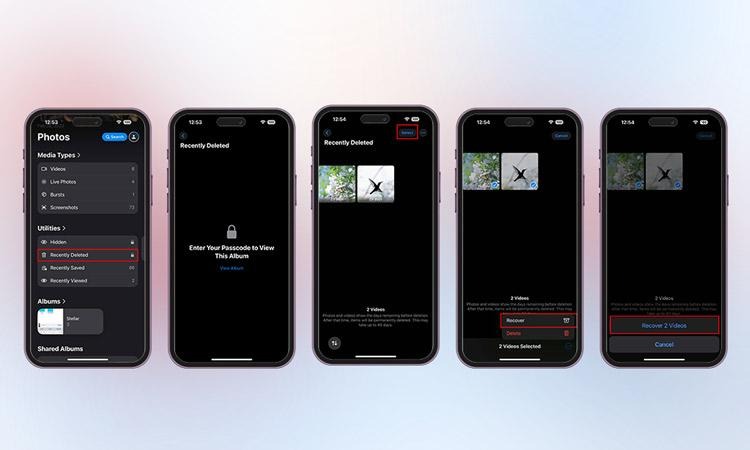
When you erase a contact, message, or a photo on an iPhone, it is not necessarily the end. Nowadays, iPhone users have a number of methods to recover their deleted data. Even if you deleted your contact, messages, or photos from your iPhone Trash Bin, you still have some options. You can use either built-in iOS features for data recovery, or you can use an iPhone data recovery solution- it is up to you.
In this blog post, we aim to provide a brief yet comprehensive review of data recovery options on iOS. Keep reading to learn how to recover photos, contacts, and messages on iPhone in no time!
Restore Deleted Contacts, Messages and Photos from iPhone
- Restore Deleted Contacts from iCloud Backup
iCloud backup is the is the best way to restore iPhone contacts if they are previously synced.
- Go to your Settings > Your Name > iCloud.
- In the Saved to iCloud section, click See All.
- Toggle Contacts OFF and then ON again.
- A prompt will appear asking what to do with the previously synced contacts. Select Delete from My iPhone.
You will get back lost contacts on the iPhone.
- Put Back Messages from Recently Deleted Folder
Check deleted messages in the Recently Deleted folder of the Message App, as it holds the deleted messages for 30 days, after which, it automatically gets deleted. Here’s how to recover messages from iPhone:
- Tap on the Messages app to open it.
- Click on Filters to go to the main screen of Messages.
- Tap Recently Deleted Folder.
- Next, select the messages you want to restore and click Recover.
- Tap Recover X Messages to confirm your choice.
- Recover Photos on iPhone from the Recently Deleted folder
Photos captured shot from the iPhone camera app are, by default, saved in the Photos app. And, by mistake, if it gets deleted, it will go to the Recently Deleted folder which retains the deleted pictures for 30 days before they are permanently deleted.
- Open the Photos app.
- Scroll down to find the Recently Deleted folder.
- To view this folder, enter the password or use your Face ID.
- Tap on the Select option at the top-right corner of the screen.
- Select the deleted photos you want to recover on your iPhone and tap Recover.
- Tap Recover X photos to confirm your choice. The deleted videos will be returned to their original album.
- Bring Back the Photos Using iCloud
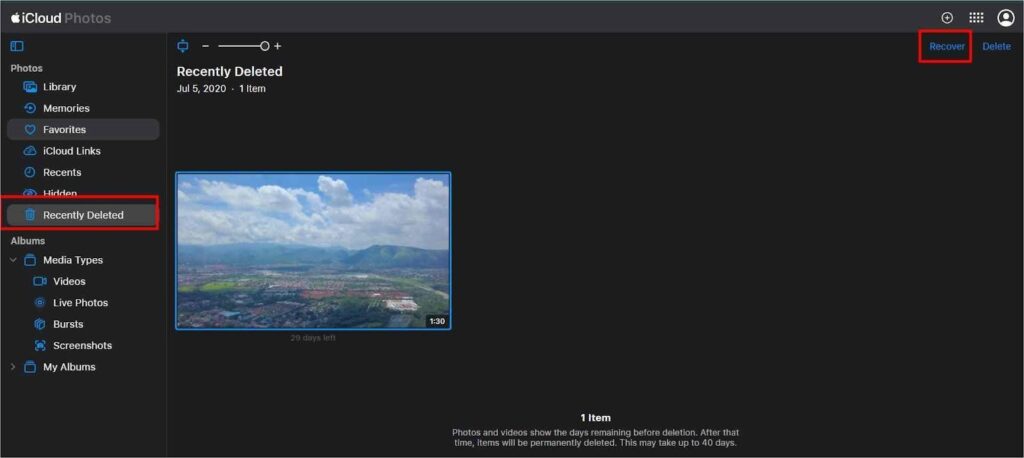
This method bring back your lost photos only if iCloud Photos has been enabled your device.
- Login with your Apple credential on the iCloud website >> select Photos.
- Go to the Recently Deleted >> select the photos >> click Recover.
- Restore iPhone Contacts, Photos and Messages using iTunes
Apple’s iTunes is proprietary tool for syncing iPhone files to Windows PC or macOS Mojave or earlier versions. Use iTunes backup to recover deleted contacts, messages and photos from your iPhone.
- Connect iPhone to your PC and click on the iPhone icon at the upper-left corner.
- Click the Summary >> Backups >> Restore Backup.
- Then, select the backup you want your iPhone to use from the drop-down menu.
- Click Restore.
- Once the restoration process is complete, check the Photos, Contacts and Messages app to see if the deleted data were recovered. If not, repeat the process and return to the most recent backup or choose an older backup.
- Use Finder to Restore Contacts, Messages and Photos on iPhone
In macOS Catalina and newer versions, Finder syncs and manages the contacts, messages, photos and other data on iPhones. Follow these steps to restore these data on iPhone using Finder:
- On Mac, launch Finder, connect your iPhone to your Mac system >> select your iPhone.
- Navigate to the General tab >> Restore Backup.
- Select the backup you like to use for restoring and click Restore to confirm.
Note: The iTunes/Finder backup has a copy of your photos, messages and contacts. You can easily get your deleted data back from Apple’s backup storage. However, along with the photos, messages and contacts, this method also restore other data present in the backup, replacing the existing data of the iPhone. This is why many users prefer professional iPhone data recovery software to restore lost videos while retaining existing data.
- Recover Deleted Photos, Messages & Contacts Using iPhone Data Recovery Software
For some users, deleted messages and photos are not found in the Recently Deleted folder or they haven’t set up the iCloud backup; in such cases, it makes sense to use Stellar Data Recovery for iPhone to restore deleted contacts, messages and photos.. The software is a quick, safe, and secure solution to restore lost data on iPhone.
- Download, install, and launch Stellar Data Recovery for iPhone on your PC or Mac.
- On the Recover From screen, select iPhone/iPad.
- Then, select the type of data you want to recover and click Next.
- Connect your iPhone to the computer via a USB cable and click Scan.
- Wait for some time, as scan may take some time to complete.
- A list of recoverable data will be displayed. Preview the recoverable files.
- Select the files you want to restore. Then, click the Save option to save the recovered photos, messages, and contacts on your chosen location.
iPhone Undelete: Final Thoughts
Accidental file deletion on an iPhone can be reversed if you act upon it as fast as possible. Having regular Cloud backups also increases your chances of success. You can choose from several built-in data recovery options on iPhone or try using third-party software tools. If none of the above turn effective, consider contacting professional service centers.
Read More Gorod