 World rankers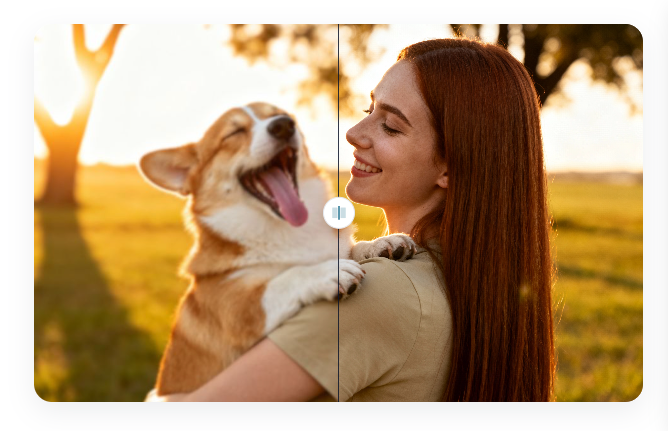
Have you ever taken a great photo, only to find it’s too blurry or a random object has ruined the perfect shot? In the past, fixing these issues required complex software and a lot of patience. Today, AI-powered tools make it possible for anyone to enhance their photos in just a few clicks.
This guide will walk you through a simple, effective process to upscale your images for incredible clarity and remove any unwanted elements cleanly. You’ll learn how to turn grainy, low-resolution pictures into sharp, high-definition visuals and how to erase distractions without leaving a trace. Let’s get started on transforming your photos.
Prepare Your Image for Editing
Before you jump into upscaling or removing objects, a little preparation goes a long way. The quality of your starting image directly impacts the final result. Begin by locating the highest-resolution version of the photo you have. Even if it’s not perfect, the original file contains the most data for an AI tool to work with.
Check the file format. JPEGs are common for photos, but they can lose quality each time they’re saved. If you have a PNG or TIFF file, use that instead, as they preserve more detail. Take a moment to assess what you want to achieve. Are you trying to make a small image larger for printing, or do you need to remove a person from the background of a vacation photo? Having a clear goal will help you use the tools more effectively.
Upscale Your Image with AI
Image upscaling used to mean simply stretching a photo, which resulted in a pixelated, blurry mess. Modern AI upscalers work differently. They analyze the image and intelligently add new pixels that match the surrounding context, effectively recreating detail that wasn’t there before. This process makes your photo sharper, clearer, and larger without sacrificing quality.
For this step, a dedicated tool makes the process incredibly simple. You can use a Free AI Image Upscaler Online to increase your photo’s resolution without any technical skill. Just follow these instructions. First, navigate to the upscaler and upload the image you prepared in the previous step. Next, choose your desired scaling factor, such as 2x or 4x. For most web uses, 2x is plenty, while 4x is great for creating prints. Finally, let the AI process the file and download your new, high-resolution image.
Remove Unwanted Objects Cleanly
Once your image is sharp and clear, you might notice distracting elements you want to remove. This could be anything from a photobomber in the background to a trash can on the sidewalk. AI object removal tools, often called “inpainting” technology, make this task incredibly easy. They allow you to paint over an object, and the AI automatically fills the space with a realistic background.
To get started, find a tool designed for this purpose. A Free Magic Eraser is an excellent choice for removing objects without needing complex software like Photoshop. The workflow is straightforward. First, upload your photo, which could be the newly upscaled version or any other image. Use the provided brush tool to highlight the entire object you wish to remove. Be sure to cover it completely. After you’ve made your selection, the AI will analyze the surrounding pixels and replace the object. Download the finished image and enjoy your clean, professional-looking photo.
Tips and Best Practices for Flawless Results
Following the steps above will give you great results, but a few extra tips can take your photo editing to the next level.
Start with the Best Possible Source Image
This point can’t be stressed enough. An AI can perform miracles, but it works best when it has more data to analyze. A photo from a modern smartphone or digital camera will always yield better results than a compressed image saved from a social media site.
Upscale Before You Remove Objects
If you plan to do both, always upscale the image first. Upscaling increases the number of pixels, giving you more detail to work with when you’re making precise selections for object removal. It ensures that the edges of your removed area blend more seamlessly with the newly sharpened background.
Use the Right Brush Size
When removing objects, the size of your brush matters. For large, simple objects like a car or a sign, a larger brush will get the job done quickly. For small or intricate distractions, like a stray wire or a person far in the background, zoom in and use a smaller brush. This precision prevents you from accidentally selecting parts of the background you want to keep.
Check for AI Artifacts
After any AI process, whether it’s upscaling or object removal, take a moment to zoom in and inspect the results. Look for any strange patterns, smudges, or unnatural-looking textures. While modern AI is very good, it can sometimes create small imperfections. If you spot any, you can often re-upload the image and try the process again for a different outcome.
Handle Complex Backgrounds with Care
If the object you want to remove is in front of a complex background, such as a brick wall or a forest, the AI has a tougher job. For best results in these situations, remove one object at a time. This gives the AI a clearer task and helps it generate a more accurate and realistic fill.
Common Mistakes to Avoid
Knowing what not to do is just as important as knowing what to do. Here are some common mistakes that can lead to poor results.
Over-Upscaling an Image
While it’s tempting to take a tiny thumbnail and upscale it by 8x, this can sometimes push the AI too far. Pushing a very low-quality image to its limits may result in an “over-processed” or cartoonish look. Stick to 2x or 4x scaling for the most natural and effective enhancement.
Making Imprecise Selections
When removing an object, don’t rush the selection process. If you accidentally paint over a piece of the background or miss a part of the object, the AI will fill the area incorrectly. This can lead to blurry patches or ghost-like remnants of the object you were trying to remove. Always zoom in and take your time.
Ignoring the Final Download Step
This may sound obvious, but many users edit their image and then take a screenshot instead of using the download button. Screenshotting will compress your image and undo all the hard work you just did to improve its quality. Always use the proper download function to save the full-resolution file.
Working on Your Original File
Never work directly on your only copy of a photo. Before you upload an image to any editor, create a duplicate. This ensures that if you make a mistake or don’t like the result, you can always go back to the original file and start over without any loss of data.
Conclusion
Enhancing your photos no longer requires expensive software or years of training. With powerful and accessible AI tools, you can easily upscale images to improve their quality and remove any distracting objects that get in the way. By following the simple steps and tips outlined in this guide, you can take control of your photo editing and produce clean, sharp, and professional visuals.
Whether you’re restoring old family photos, preparing images for a professional portfolio, or just cleaning up your social media posts, these techniques give you the power to perfect every shot.